When this is the right page
Use it when the job is a face rather than a mark: a portrait that needs a little of several things — a spot or two, some skin, the shadow under the eyes, a lift in the iris. The Face panel puts every one of those in a single list for the face you have selected, with the value each layer is at, so you can see the whole retouch at once instead of remembering what you did three tools ago.
If the job is one thing — only a blemish, only red-eye — the single-purpose page opens faster with the right tool already in hand. If there are several people in the frame, the group page starts with the numbers visible.
What the panel shows
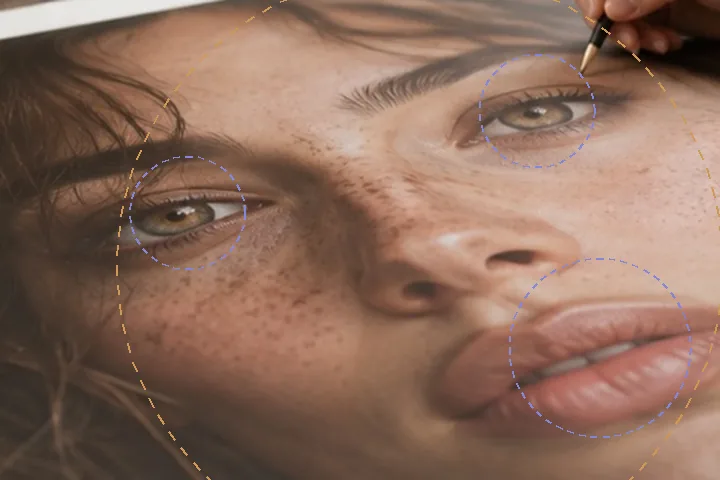
The face finder sits at the top. Ask for it and a 224 KB model file comes to this tab once; it reports a box and five points per face, and every face it finds becomes a numbered region. Below that, one row per layer: Skin with its texture and tone figures, Spots with how many were healed and how many are proposed, Under-eyes with the bands laid, Eyes with amount, clarity and catchlight, Teeth, and Red-eye. Press a row and the rail switches to that tool.
Under the list is the one number this desk is built around: pore texture retained, measured in the worker as the high-band energy inside the face’s mask after the retouch against before it. Then the Light group — exposure and white balance for the whole frame, both capped.
- Layers listed
- skin · spots · under-eyes · eyes · teeth · red-eye
- Faces
- one region per face found, numbered
- Face finder
- 224 KB model, once, on request
- Light
- ±1 stop; white balance capped at 8 Cb/Cr units
- Reshaping
- none, at any setting
What it will not do
- It will not change the shape of a face. There is no slim, lift, enlarge or move control here and none will be added; the reasoning is written up in full on the reshaping guide.
- It does not trace features. The finder gives a box and five points, so the eyes and mouth are cut out of the mask as discs, not outlines.
- It may miss a face. In profile, behind glare, in low light and on some skin tones the finder can miss; add a region and drag it over the face, and everything works the same.
What people ask
Can it slim a face or enlarge eyes?
What does the Face panel change by itself?
Is my photo uploaded?
What does pore texture retained measure?
Does it lighten skin?
Read next
- Retouch a group photoOne numbered region per face, a skin layer for each, and the settings copied across on request.
- Touch up a photoSpots, then skin, then eyes: three skippable steps on the full desk, each with its own compare.
- Skin smoothingOpens with the skin layer at 25 per cent, which leaves three-quarters of the texture.
- How far is too farWhere the caps sit, why they are there, and what the distance readout is measuring.
- Why nothing here reshapes a faceThe one exclusion that is a decision rather than a boundary, and the reasoning behind it.